Plan
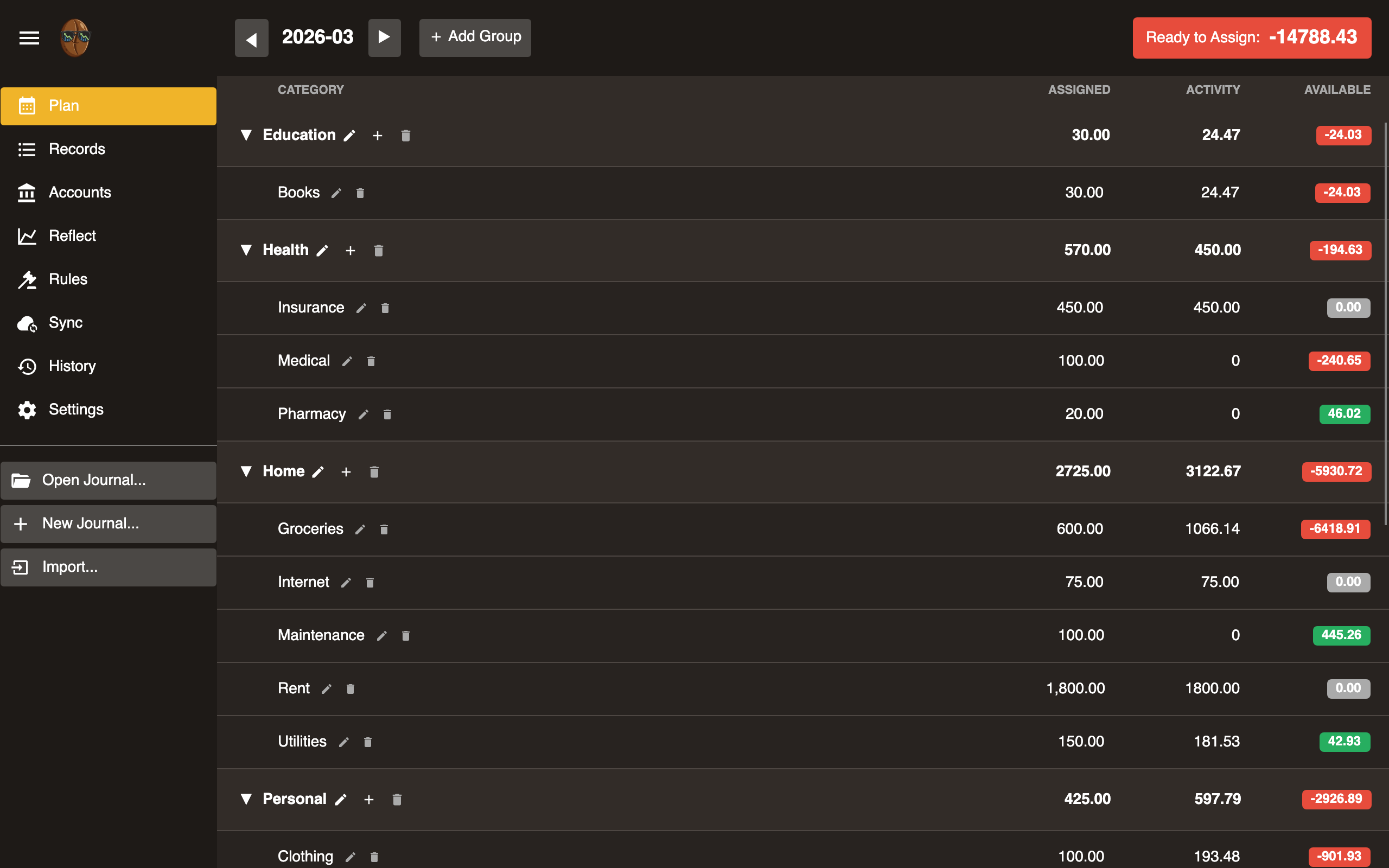
The Plan tab is for envelope budgeting. It lets you assign income to categories, called envelopes, and track actual spending against what you planned.
Ready to Assign
This number shows unbudgeted income: money you have received but not yet allocated to any category. The goal is to make it zero each month.
Click the number to see how it follows from last month:
Ready to Assign = End of last month + Income + Equity + Market changes
                - Moved to tracking - Overspent last month - Assigned
Rows that are zero are hidden, so a typical month shows only a few lines.
| Row | Meaning |
|---|---|
| End of last month | Last month’s Ready to Assign. |
| Income | Money received this month. |
| Equity | Money that appeared or left without being income or spending: starting balances of newly added accounts and balance corrections. |
| Market changes | Investments held in budget accounts changed in value. No money moved. |
| Moved to tracking | Money that left the budget for a tracking account, such as an investment contribution or a house purchase. |
| Overspent last month | Overspending that reset to zero at last month-end. |
| Assigned | Money allocated to categories this month. |
Every row except Assigned is a link. Clicking one opens the Records tab filtered to the records behind that number, with a banner naming the filter; clicking End of last month instead steps the Plan tab back a month. Assigned does not navigate because the category rows below already show the allocations.
Category groups
There are collapsible sections that organize categories. Examples: Fixed Expenses, Variable Expenses, Savings Goals. Each group row shows totals for Assigned, Activity, and Available across its categories.
Rename and Delete are header actions: click a row to select it, then use the buttons in the header.
- Add group: Click + Add in the header.
- Select: Click a group row to highlight it.
- Rename: With the group selected, click the pencil button. Edit the name in place; Enter saves, Escape cancels.
- Collapse/expand: Click the arrow on the group row to toggle visibility of its categories.
- Delete: With the group selected, click the trash button. A banner says how many categories will be removed; click Delete to confirm or Cancel to dismiss.
Categories (envelopes)
Each category represents a spending envelope.
| Column | Description |
|---|---|
| Category | Name of the envelope. |
| Assigned | Amount budgeted this month (editable). |
| Activity | Amount spent this month. Click to view matching records. |
| Available | Cumulative balance: prior months’ carry-forward + Assigned - Activity. Shown as a colored pill. Green is positive, red is overspent, grey is zero. |
- Add category: Click + Add within a group.
- Rename: Select the category, then click the pencil button in the header. Edit the name in place; Enter saves.
- Delete: Select the category, then click the trash button in the header. Confirm via the banner.
Uncategorized Records
When records exist without a budget category, an Uncategorized Records row appears at the top of the plan.
| Column | Description |
|---|---|
| Assigned | Always “-”. You cannot assign money to uncategorized spending. |
| Activity | This month’s uncategorized flow. Click it to view those records. |
| Available | Cumulative balance, like any category. A positive balance carries forward. When you overspend, the value is red and negative. It resets at month-end and folds into Ready to Assign. |
This row is a hint to categorize records: as you assign records to categories, the values in this row move to zero.
Move Money
Click a category’s Available pill to open the Move Money popup. Enter an amount and select a target category. Surebeans adjusts the budgeted amounts for both categories so Available balances shift accordingly.
Month navigation
Use the left/right arrows or month/year picker to navigate between months. Each month has independent assigned amounts.
Responsive layout
On narrow screens under 600px, the Plan switches from a columnar table layout to a card-based layout, with each category shown as a stacked card.
Overspending
When a category’s Available goes negative (red pill), you’ve overspent that envelope. Move money from another category or add more to Assigned.
Funds by Currency and Other Holdings
When your budget holds money in more than one currency, a Funds by Currency card appears above the categories. You budget in your main currency, but foreign money is worth more or less in your main currency as exchange rates move. Money you have already assigned can become worth less than you planned. The card shows that exposure so you can react before you overspend.
For example, say your main currency is the US dollar. You hold savings of 1,000 EUR, worth 1,090 USD today, and you assign all 1,090 USD to categories. The euro then falls, and the 1,000 EUR is worth 1,050 USD. About 40 USD you assigned is no longer there, so the budget is over-assigned, even though you neither earned nor spent anything.
Each row shows the amount held, its cost basis in your main currency, its market value, and the gain or loss from rate movement. The Show in toggle switches the rows between your main currency and the amount actually held.
When a currency has no exchange rate, its value cannot be computed and a warning appears below the rows. Resolve it with Fetch prices in the toolbar, or Add price to type today’s rate yourself. Both save a P directive to prices.journal. See Multi-Currency for how prices work.
A separate Other Holdings card lists securities such as stocks or crypto that sit in a budget account. These are not currency and do not affect currency planning. To keep them off this card, move those records to a Tracking account.