Import Review
After importing records from any source, Surebeans opens the Import Review screen. Inspect each incoming record and preview its effect on your running balance before committing it to the journal.
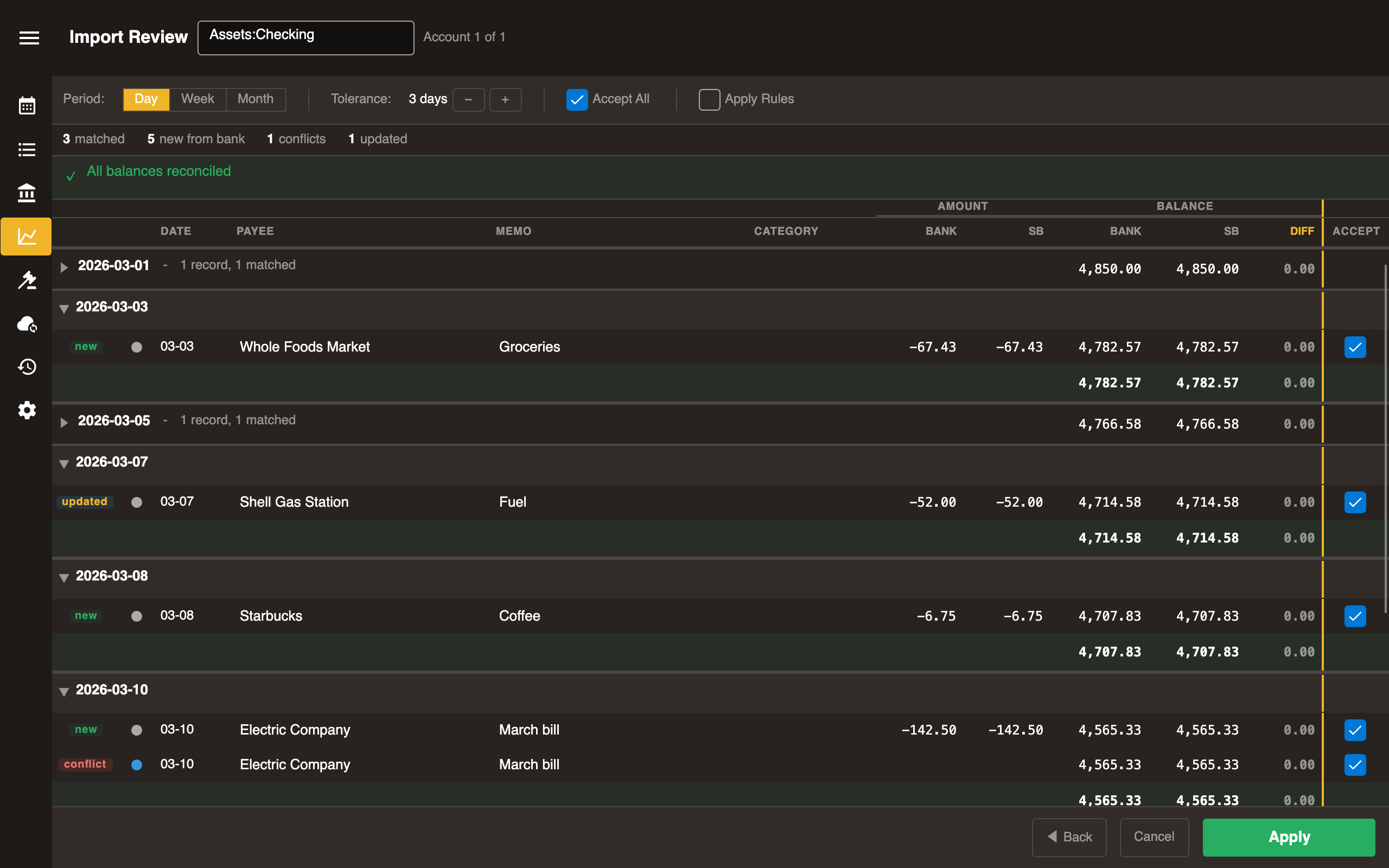
Account name

The records will be applied to the shown account.
If you imported from multiple banks, import review cycles through them one at a time.
Toolbar

Near the top of the screen is the toolbar.
Period
Records are grouped by time period. Choose between Day, Week, and Month.
- By default, periods where everything matches are collapsed.
- By default, periods with new, conflicting, or updated records are expanded.
- Click any period header to collapse or expand it.
Each period has a summary row at the bottom showing end-of-period balances.
Tolerance
How many days apart records with different dates can be matched. They must have the same payee, memo, and amount. Default: 3 days.
For example, the incoming record 2026-01-04 | Amazon | MEMO1234 | $10.23 can match the existing record 2026-01-01 | Amazon | MEMO1234 | $10.23.
Accept All
Click this button to check Accept next to all records. Uncheck to uncheck them all.
Apply Rules
Click this button to apply automation rules on the incoming records.
Edit Rules
Click this button to navigate to the rules editor.
View Data
Click this button to see the raw imported data text, e.g. CSV, OFX, or JSON, depending on the source.
Status bar

If all balances match, a green “All balances reconciled” bar appears. If there’s a discrepancy, a warning bar shows the amount. You can still click Apply.
Summary bar

Beneath the toolbar, the summary bar shows counts of each record change type: matched, updated, new, and conflict.
Records

Record change type
Import Review compares each record to import with your existing Surebeans records and assigns a change type.
| Pill | Meaning |
|---|---|
| matched (grey) | Already in Surebeans. No action needed. |
| updated (blue) | Amounts match but the cleared/pending status changed. |
| new (green) | Exists in the bank but not in Surebeans. |
| conflict (red) | Exists in both but amounts differ, or exists only in Surebeans |
Date
The date from the incoming data appears here.
Payee, Memo, Category
The payee, memo, and category from the incoming data appear here. You can edit them on new and conflict rows.
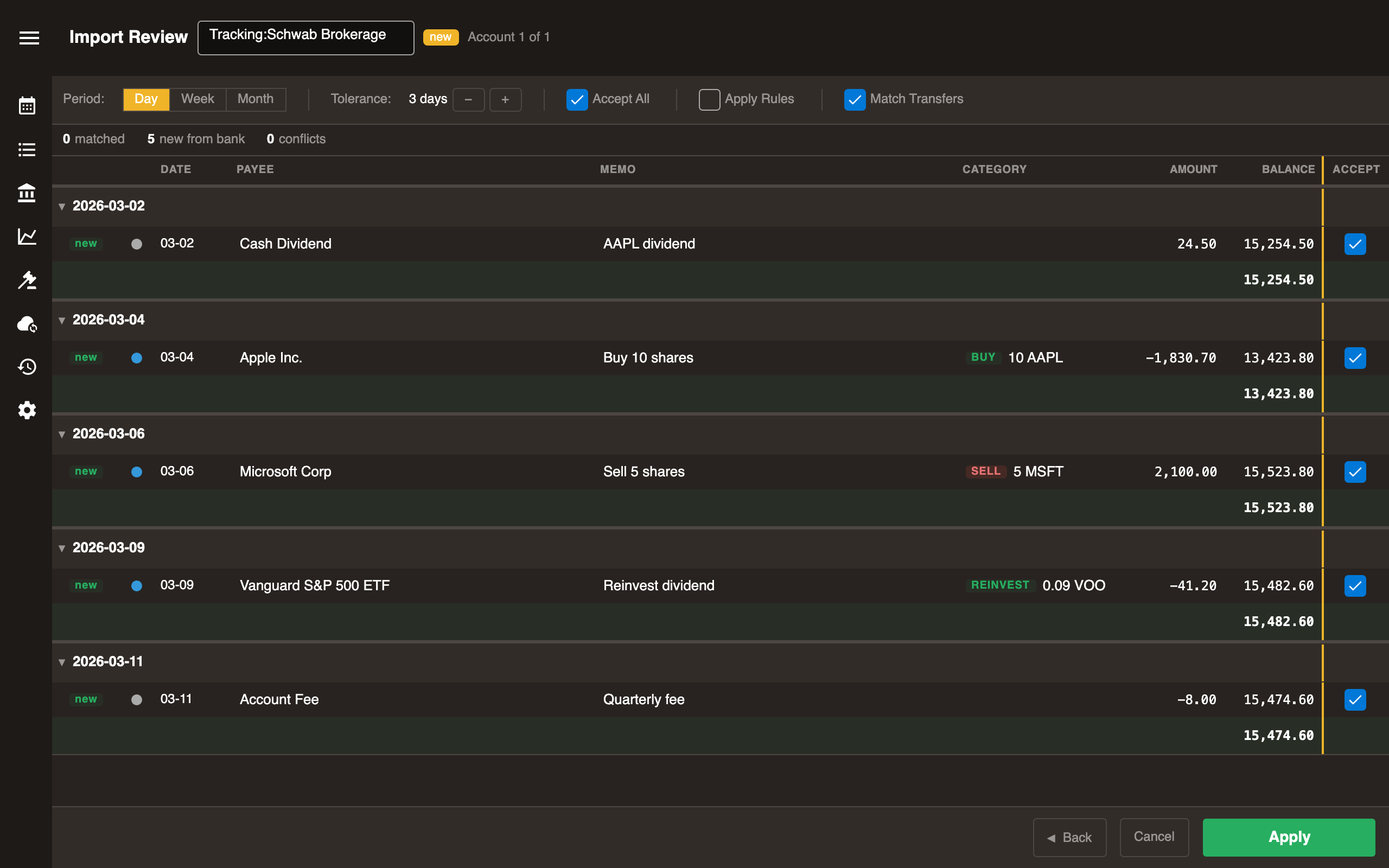
For an investment row, a trade badge replaces the category: BUY, SELL, REINVEST, or TRANSFER, with the share quantity and ticker. Cash rows categorize normally.
Balances
When the imported data includes a running balance, the review shows Bank and Surebeans (SB) columns side-by-side, and the Diff column highlights any discrepancy in yellow.
When the imported data doesn’t include a running balance, these columns show only the Surebeans balance.
Accepting and rejecting
Every unmatched row has an Accept checkbox, checked by default.
- Checked accepts the bank’s value.
- Unchecked keeps what’s already in Surebeans.
Action bar

At the bottom is the Action bar. Use the Back and Next buttons to navigate between accounts. The Apply button appears on the last account.